
Tax Hub Help
SafeSend Taxpayer Dashboard
Currently, there is no mobile access to SafeSend, and a desktop or laptop is the best way to access the dashboard. Chrome is the recommended browser.
Reference Guide
Top 5 Issues
-
- Didn’t receive login code
- Ensure you are using our Login page.
- Check spam/junk/promotions.
- Allowlist: noreply@safesendreturns.com and noreply@safesend.com
- Request a new code after 1-2 minutes.
2. “Information entered is invalid”
- Email entered likely doesn’t match what we have on file.
- Contact portal@avantcpas.com with the preferred login email and we’ll update it.
3. Locked out after 3 PIN tries
Email portal@avantcpas.com to reset your PIN.
4. How do I message you on SafeSend?
Once logged in, go to Documents on the lefthand menu and click on the blue “Send Files” button. This will open up a window similar to an email. You do not need to attach anything to send the message, although it will ask if you want to send the message without attachments.
5. Mobile viewing
You may review and sign your returns on a mobile phone instead of a computer. Uploading and other tasks are limited or not available.
Click here to see the client mobile experience, or desktop or laptop viewing with Google Chrome for the best experience.
FAQ
- Do I have to create an account?
If you are an existing client, we highly recommend creating an account. SafeSend uses a passwordless login which verifies a user’s identity without requiring a traditional password. Instead, it uses alternative forms of verification such as one-time passcodes and magic links. This eliminates many of the weaknesses associated with passwords, including phishing attacks.
If you are a new client and receive an error when trying to create an account, please contact our firm.
- How do I create an account?
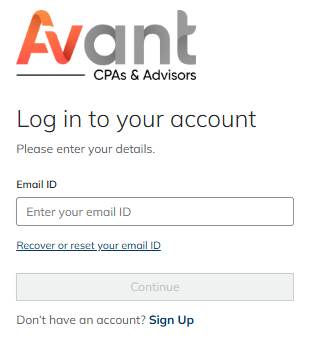
STEP 1:
To create an account, access the Tax Hub link and click “Sign Up.”
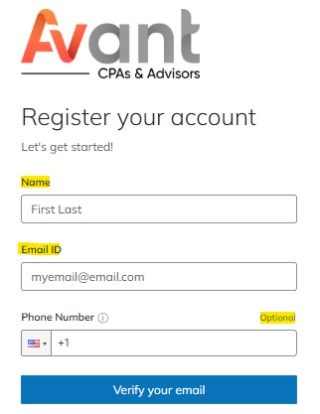
STEP 2:
Register your account:
- Name: Type your first and last name.
- Type your most frequently used email address (you can add or edit email addresses within the portal later)
- Type your phone number if you want to receive secure access codes via text message.
- Click “Verify your email”
- Do not close this browser window.
If you get a message “Information entered is invalid,” please email us at portal@avantcpas.com with the email address you would like to use as your login. Once confirmed, start from Step 1 again.
STEP 3:
Within a few minutes, you’ll receive an email from noreply@safesendreturns.com that looks like the one pictured here.
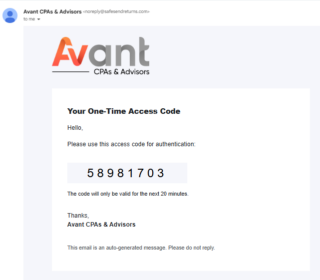
STEP 4:
Type the code from the email into the boxes on the website. Click Confirm.
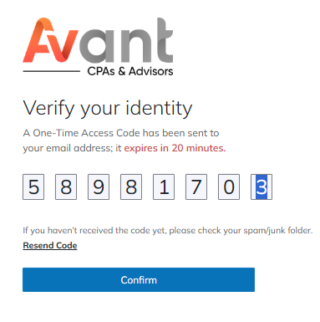
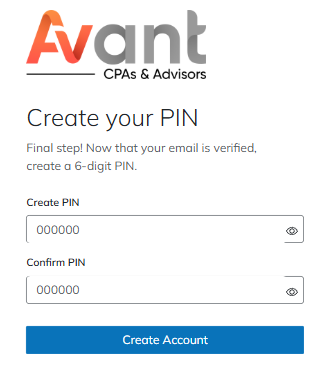
STEP 5:
- Create a 6-digit pin, numbers only.
- Click on the eye icon within the field to show the numbers you typed to ensure they match.
- Click create account.
Important: This will be the pin you use every time you log in to the website; please write it down or memorize it.
You will be redirected to the login page.
- I created my account; now what?
Now that you’ve created your account, log back in and add a recovery email address or phone number for additional security.
Also, check out the links under the Reference Guide on an overview of how to use the SafeSend dashboard.
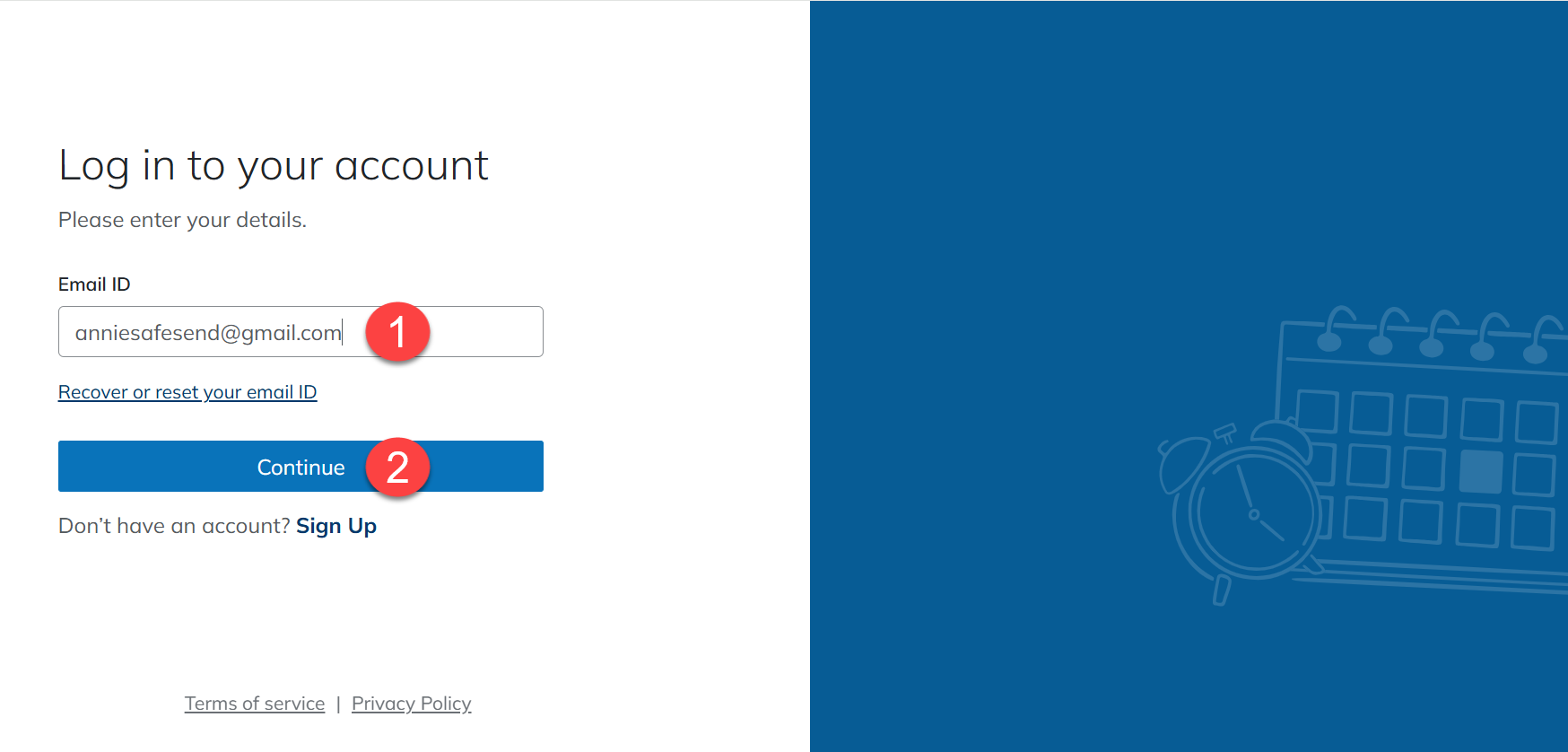
STEP 1 & 2:
Access the tax hub link anytime by typing “https://www.ssportal.com/avantcpas/ in your browser, clicking the link from a SafeSend Returns email, or using the link on our website. A desktop or a laptop is currently the best way to navigate the site.
Enter your email ID and click Continue.
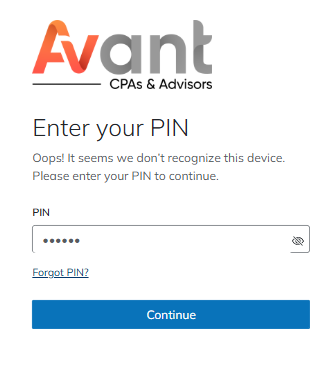
STEP 3:
Enter the exact same 6-digit numeric pin that you created when you first created your account.
Click Continue.
Note: If you enter the wrong pin 3 times, the system will lock you out. You will need to contact portal@avantcpas.com to get your pin reset.
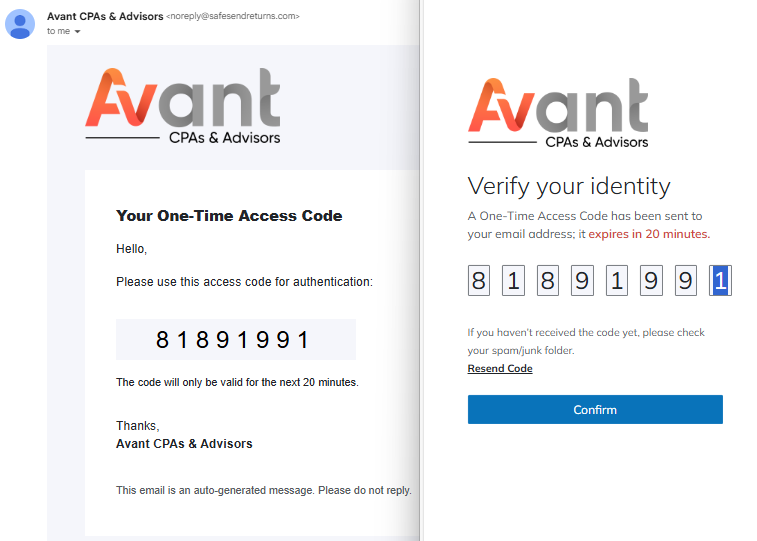
STEP 4:
Each time you log in, you will receive an access code email (or text message) for security. Enter the access code into the login page and click Confirm.
STEP 5:
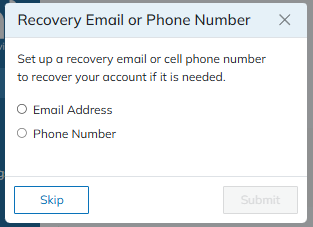
A popup will appear if you haven’t yet set up a recovery email or phone number. This step is recommended.
- How do I navigate the dashboard?
The best answer is from SafeSend’s client portal experience page; there’s even a video!
- How do I add my spouse’s email to my SafeSend Client Portal?
- Login to your account.
- Click on Security Settings located on the left side of the portal.
- Under Merge Emails, you can add your spouse’s email address by typing in the box Add another email ID.
- Once you have typed your spouse’s email into the box, click the Add button to save the email ID.
- How do I add my accountant, executive assistant, financial advisor, or other authorized user?
You may grant a 48-hour SafeSend access link to third parties under Security Settings. If an authorized user will be working with us regularly, they can access the Client Workspace instead or contact us for other arrangements.
For existing clients, we have already added your authorized user to the workspace portal. For new clients, contact our firm. We will require a signed Consent to Disclose before the authorized user can be added to your workspace.
- Can SafeSend be accessed from my tablet or mobile device?
At this time, you may only review your returns on a mobile phone.
Desktop or laptop viewing with Chrome is the best option to sign, pay, upload docs, view tasks, message us, and distribute K-1s. If mobile access does become available, we will let clients know immediately.